Git is a version control system which means that it allows you to keep track of changes that you make to files over time by making commits. Commits in Git are like taking a snapshot of your files that you can return to at any point.
Git also enables your team to collaborate by using remotes, which are connections to a centralized storage location on the internet, such as GitHub. The commits you make on your copy of the project can be shared with the team by pushing to the remote repository on GitHub.
How to use Git at Meteor
Warning: Terminal commands ahead
Git is a command line tool which means that is is used by typing commands into the terminal. This may sound scary to some of you but don't worry this guide will walk you through it! Don't want to use terminal commands? The GitHub desktop client provides an easy to use interface for interacting with your repos however it is still useful to go through this guide so you can understand what GitHub desktop is doing behind the scenes
This section will go over the very basics of Git required to do work at Meteor. Git is a huge tool with a ton of features so if you are a developer it is recommended that you find some more in-depth guides online. Learn Git Branching is an awesome online interactive course to learn managing branches.
Cloning your project
Meteor projects which use Git are stored on Github and can be cloned in order to download them on to your computer. Cloning the project not only downloads the files for the project, but also lets Git know to watch out for commits.
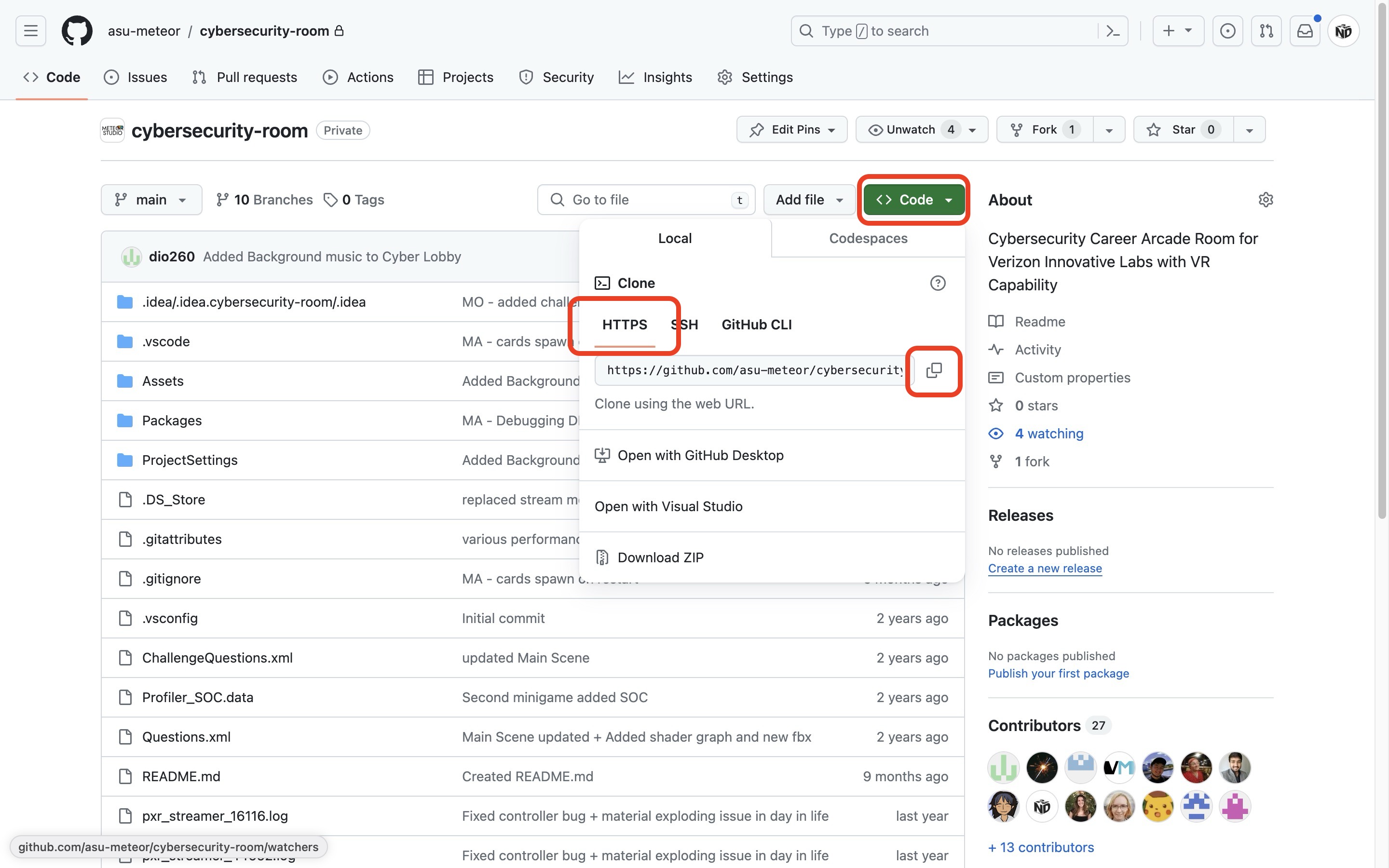
The first step in cloning our project is to get the URL for our repository from GitHub. Navigate to https://github.com/ and sign in. You should see the repository for your project on the left side under Top Repositories. If you don't see the repository there, reach out to your team lead about getting added to the repo. Click on the name of your project repository and then click on the green button that says Code, make sure that you are on the HTTPS tab, and click the button to copy the URL.
Open your terminal and navigate to the location which you would like like to download the project to. For this guide we will assume that there is a folder called meteor in your documents folder, type cd documents/meteor in your terminal and press enter to run the command.
What is a terminal?
The terminal is a way to interact with your computer by entering in text commands. These text commands are then executed by your computer. For MacOS you can open a terminal simply by searching for the terminal app. For Windows machines, search for Powershell. Once you have your terminal open, you should see a few things including which directory, or folder, your terminal is open at. For Powershell it should look something like PS C:\Users\username> and for MacOS it should look like username@computer_name ~ %. For MacOS the tilde(~) symbol represents your home directory /Users/username. When executing terminal commands, they are run from the directory you are in so it is important to check this before running commands. In order to change which directory we are in, we utilize the change directory command cd <directory> where <directory> is the directory we want to change to relative to our current directory. If we wanted to change directory to be in our downloads folder we type cd downloads and hit enter to run the command. The prompt in the terminal should now read PS C:\Users\username\downloads> or username@computer_name downloads %. If we want to change directories to the folder that our current folder is in we can use cd .. to go up a directory.
In your terminal, type git clone and paste in the URL that you copied from GitHub. (if you're using Powershell then you will have to right click in the terminal to paste, Ctrl-V does not work). Your command should look something like this git clone https://github.com/asu-meteor/cybersecurity-room.git. Git will prompt you to authenticate with GitHub #needs-revision and after authenticating, Git will download the repository.
Once complete, check the status by running the git status command. You should get an output like Your branch is up to date with 'origin/main'.
You can also run the ls command to show all files and folders in your current directory. You should now see a directory for the repository you created.
Making your own changes
This section describes my recommended process for making and pushing your changes. Each step in the process is described in more detail in the corresponding sections below.
This process assumes you are in a terminal at the directory of your git repo
Run the git fetch command.
Run the git status command. If the second line of the output doesn't start with Your branch is up to date with, follow the steps in Pulling in changes
If the section labeled Changes not staged for commit is empty, go ahead and make your changes. After making changes to files, they should show up when running the git status command.
Assuming you want to save all of your current changes into a commit, run the command git commit -a -m "commit message" with commit message being replaced with a helpful message describing your changes. the -a tells git to add all of our outstanding changes and the -m prefixes our commit message.
Now that we have made a commit, we can run git push to push the commit to the remote. Your teammates should now be able to pull your changes to their local copy
Pulling in changes
As your fellow team members make changes to the project they will Push commits to the Remote, updating the shared copy of the 'timeline' of changes to the project. In order for you to have these changes in your local copy of the project, you can run the git pull command. The pull command updates your files to the latest changes on the remote for the branch you are currently on. Behind the scenes git fetches the latest changes and checks out to the tip of the branch.
Getting an error?
If your error says something like Your local changes to the following files would be overwritten by merge this means that you have un-committed changes that conflict with changes made by someone else in the commits you are attempting to pull. If you are working with branches, you can switch to/create another branch and commit your changes there before checking back out to the branch you were pulling and running the pull command again. Another option is to use git stash to stash the files, then run git pull and then git stash pop. Note that this will place your changes over top of the changes you pulled and may overwrite someone's changes so consult with someone knowledgable in git if you need help.
Staying in Sync
Before you are ready to Push your commits, it is important that your local git repository is aware of the current state of the remote repository. Running the git fetch command will tell git to to fetch the latest commit log from the remote. It is important to note that the fetch command will not make any changes to your files or your local branches, it simply makes sure that git is aware of the latest available changes on the remote.
Making a commit
When you're ready to save your changes you first Stage your changes which tells git what changes are going to be tracked by the commit, and then you can create the Commit and give it a commit message.
Pushing your changes
The git push command takes your latest changes and sends them to the remote so that other people can download your changes
Glossary
Stage
Staging a change tells git that it will be included in the next commit that is created.
Commit
a commit represents a snapshot of changes to files in a repository, complete with a timestamp, author information, and a descriptive message explaining the changes made. It serves as a way to track and manage the evolution of a project's codebase over time.
Push
Upload local repository content to a remote repository
Fetch
fetches the latest commit log from the remote. See Staying in Sync for more info.
Remote
A remote is an instance of git running on a central computer connected the internet.
Repository
A repository is a place where you can store your code and other files. Defining a repository in git tells it where to look for files to keep track of.
GitHub
GitHub is a web-based platform for hosting and managing Git repositories. It is the primary place which Meteor hosts Git repos. If you need to be given access to a repo for your project, reach out to your team lead or someone from the DevOps team